
Prerequisites
- Network connectivity to required SASE Agent service URLs.
- Firewall access for required inbound and outbound traffic.
- Open ports based on the configured VPN protocol and tenant region.
For the complete list of required URLs, ports, and protocol details, see sk182251.
In the Downloads page, you can download the Check Point SASE Agent and Certificate.
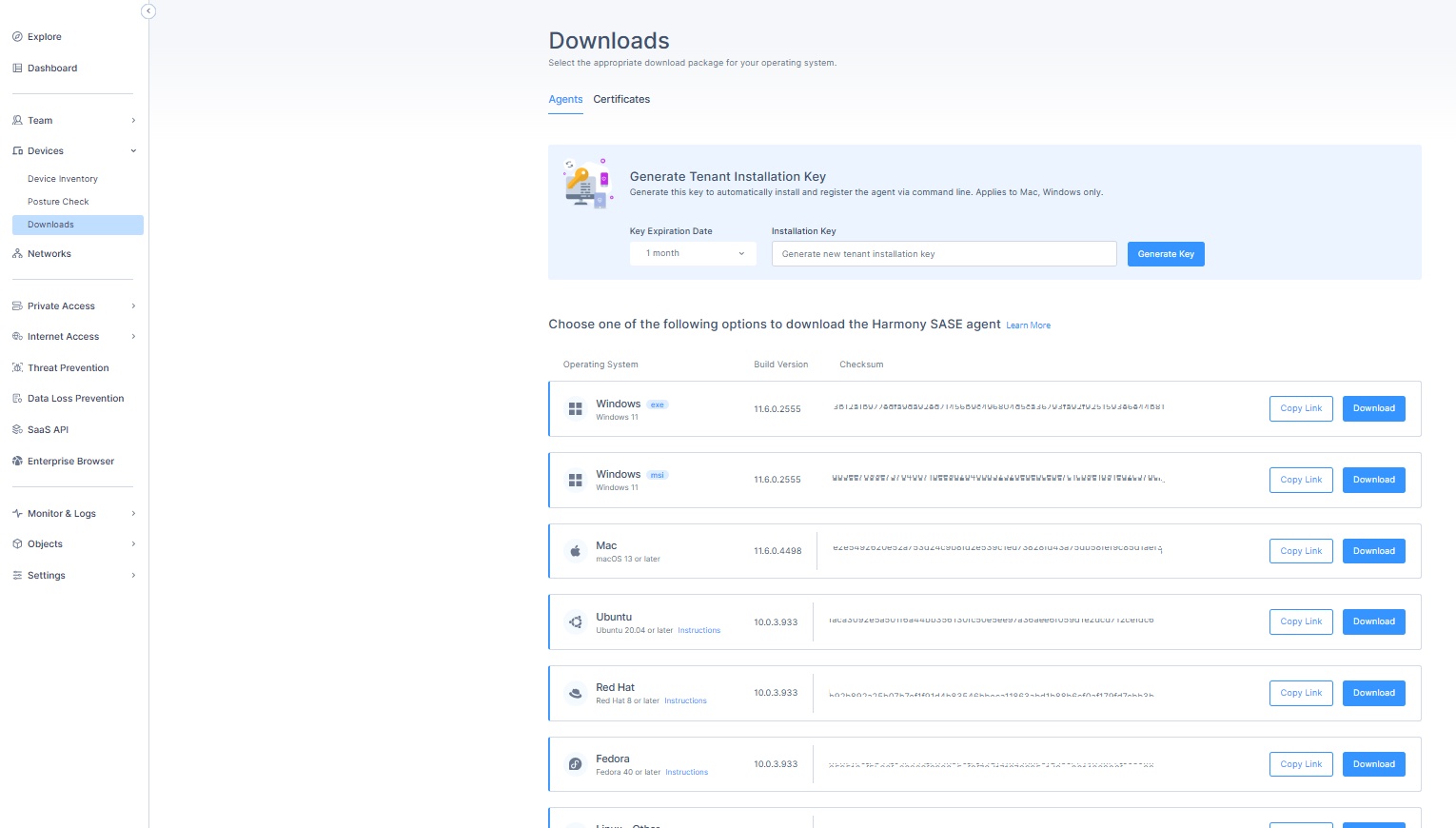
Note - The version available here may be newer than the default version for some customers, while a gradual rollout is underway.
Notes -
- For the latest SASE Agent versions, see sk182466.
- The SASE Agent is supported on devices with ARM processor in Private Access mode only.
Downloading the Check Point SASE Agent
- Access the Check Point SASE Administrator Portal and click Devices > Downloads.
- Click the Agents tab.
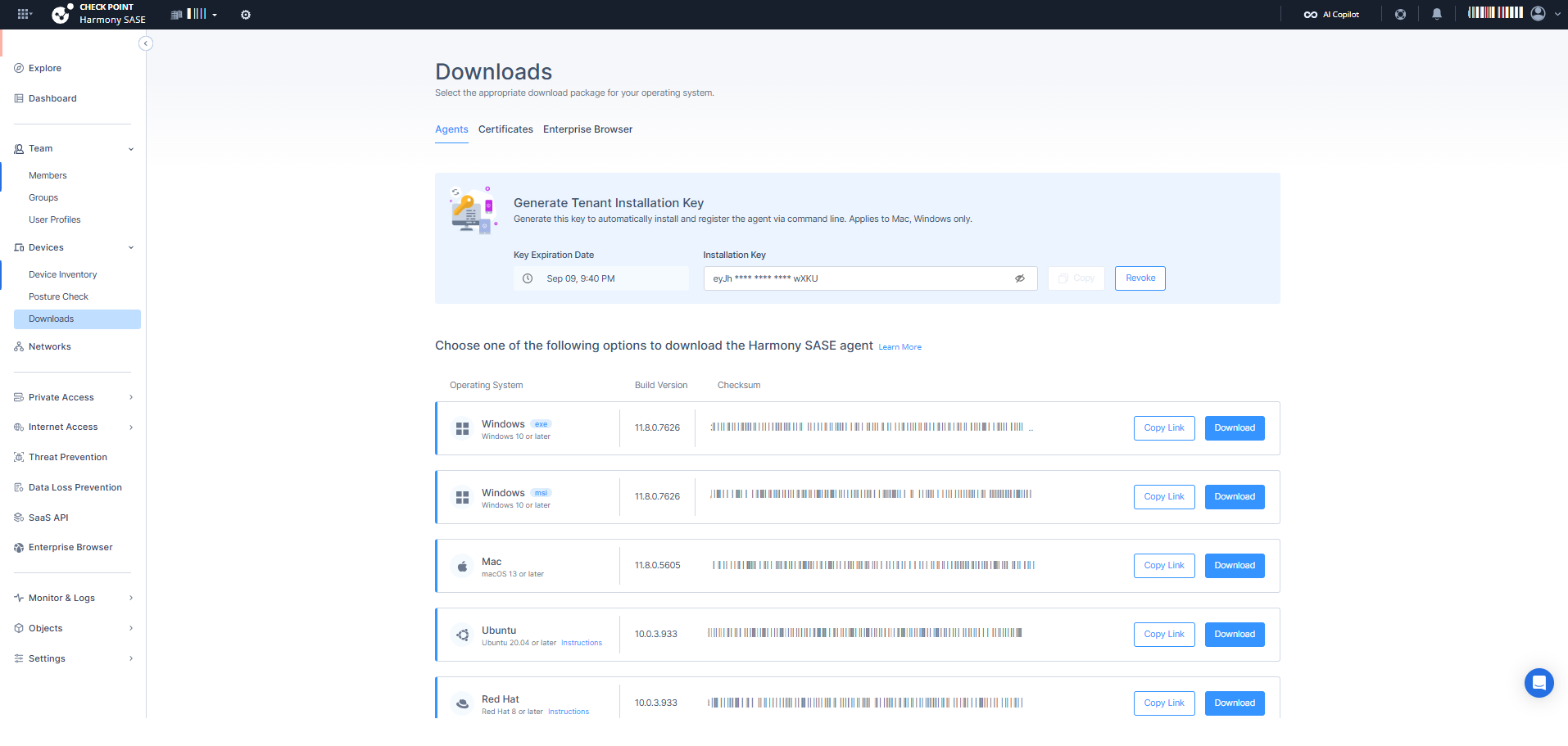
- Do one of these:
- Click Download.
The system downloads the file.Operating System Download MacOS 
macOS 13 or laterPKG Windows  Windows 11
Recommended:
Stable:ARM:
Linux  Ubuntu 20.04 or later
Redhat 8 or later
Fedora 40 or later
Linux 8 or lateriOS  iOS 15 or later
App Store Android / Chromebook  Android 12.1 or later
Google Play - Click Copy Link to copy the download link. Share the link with members.
- Click Download.
- To verify that the downloaded file is authentic, use the Checksum.
- Deploying the Agent Using an MDM Application.
Downloading the Certificate
- Access the Check Point SASE Administrator Portal and click Devices > Downloads.
- Click the Certificates tab.
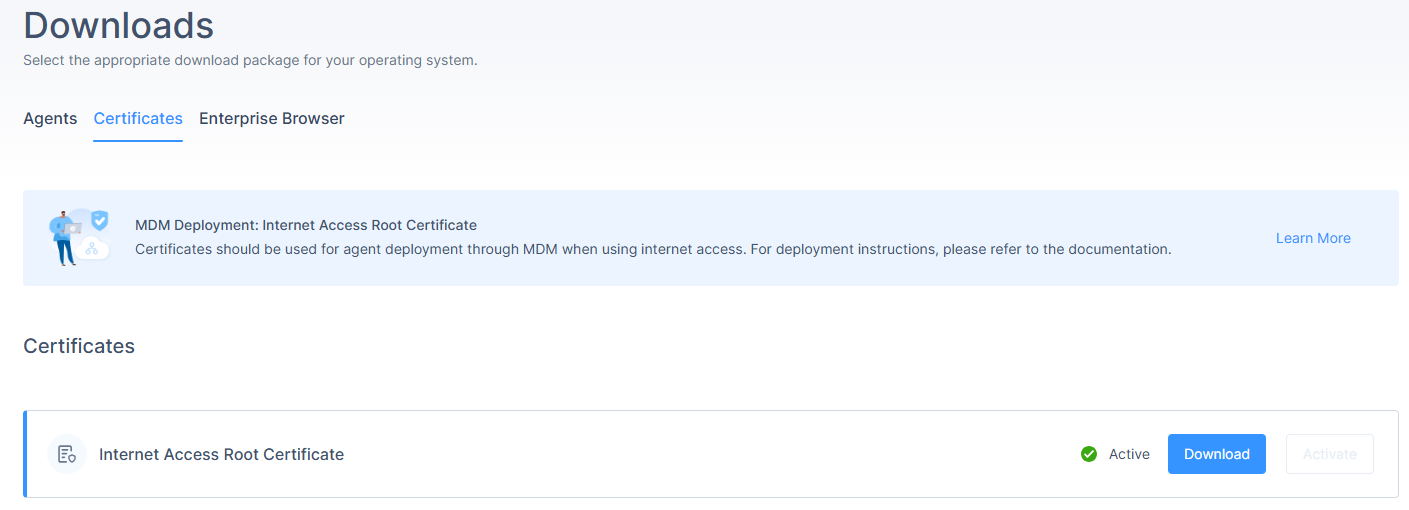
- Click Activate to activate the SWG root certificate.
- When the certificate is active, click Download.
The system downloads a PEM file.
MDM Deployment
If the devices in your organization are managed through a central desktop management tool you may prefer remote installation instead of having team members download and install the agent on their own.
Web Security (SWG) - Agents with the Web Security feature enabled requires additional steps to ensure the feature's full functionality. For detailed steps, see MDM App Deployment.