This article describes how to activate two-factor authentication.
- To activate two-factor authentication, select Settings in the Management Platform on the left side and then select Identity Providers. Select Two-factor Authentication and select Turn On.
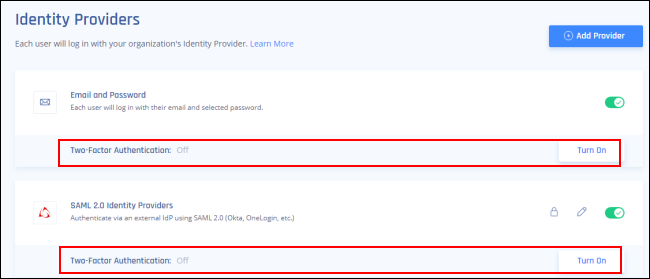
- Select the two-factor authentication for email and password or for SAML 2.0 identity providers by selecting Turn On.
Select one of these dialog displays: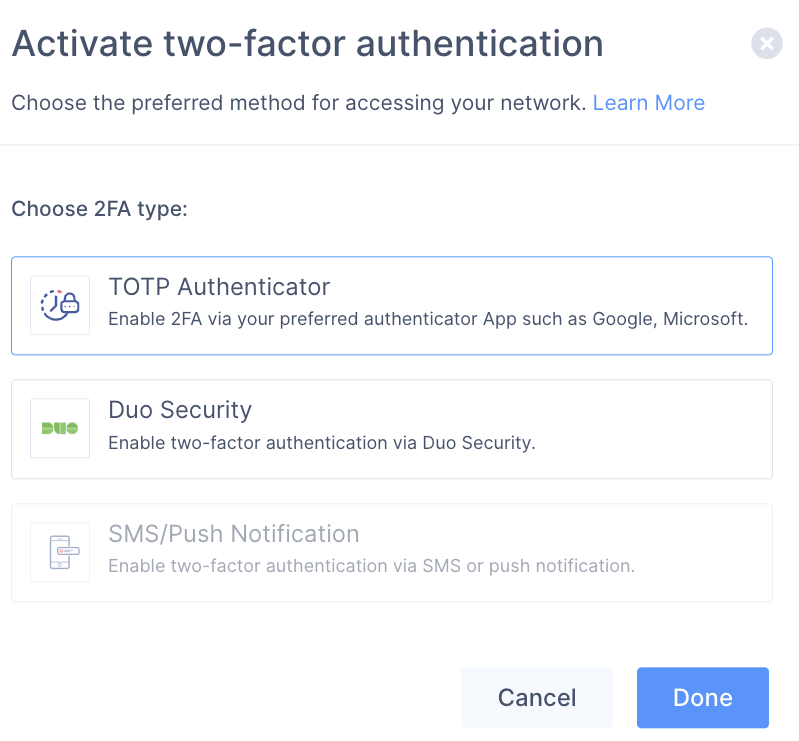
- Select one of the following two-factor authentication methods:
- TOTP Authenticator
- Duo Security
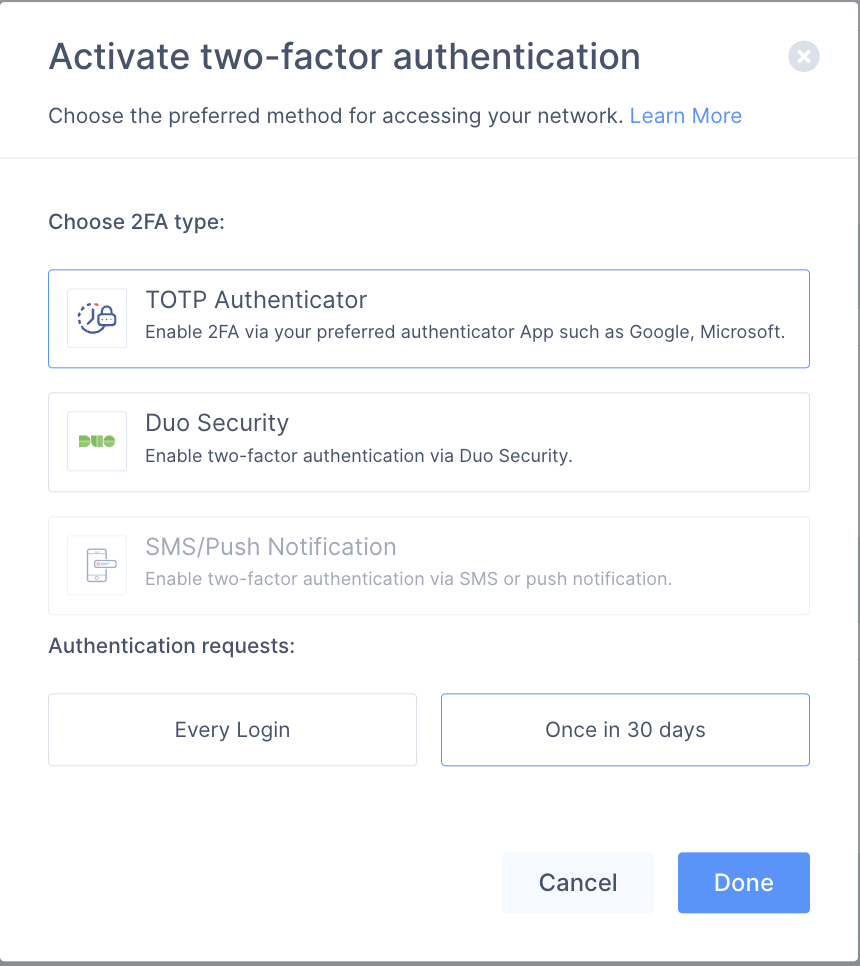
3. You can also choose to select team members that will be required to complete two-factor authentication either for every login or once every 30 days.
4. Select Done.
When the users are authenticating for the first time they will be requested to scan the QR code (TOTP Authenticator).
In case it is needed, you will be able to reset the MFA through the portal and it will prompt for the QR code on the next user login.
Please be aware that the two-factor authenticator is defined per IdP and cannot be assigned to a specific user.