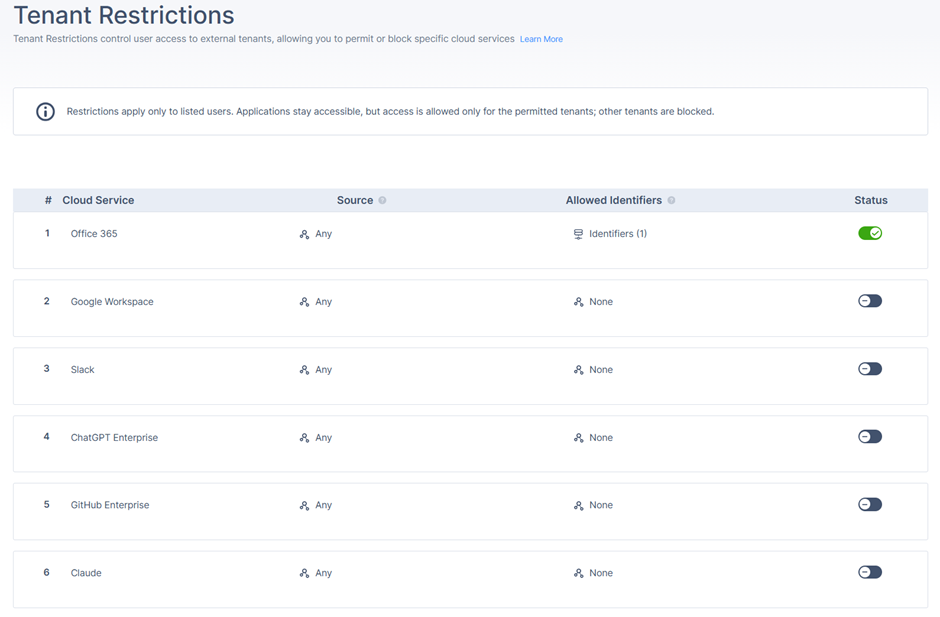
Tenant Restrictions allow administrators to control which tenants of supported SaaS applications users can access. This feature prevents users from accessing personal or unauthorized accounts on platforms such as Microsoft 365, Google Workspace, GitHub, Claude, ChatGPT, and Slack, ensuring that only organization-approved tenants are reachable from the corporate network.
Tenant Restrictions for GitHub, Claude (Anthropic), ChatGPT (OpenAI), and Slack are available in Early Availability (EA) only. To enable, contact Check Point Support.
To view the Tenant Restrictions page, access the Check Point SASE Administrator Portal and click Internet Access > Tenant Restrictions.
Supported Applications
Tenant Restrictions supports these applications:
- Microsoft 365
- Google Workspace
- GitHub
- Claude (Anthropic)
- ChatGPT (OpenAI)
- Slack
Policy Table Columns
| Column | Description |
|---|---|
| Cloud Service | Displays the cloud service for which the restriction is applied:
|
| Source | Defines the groups or members the restriction applies to:
|
| Allowed Identifiers | Specifies the tenant identifiers that users in the selected source are allowed to access. The accepted identifier format depends on the selected vendor. Examples for Microsoft 365:
|
Specify one or more domains explicitly in the allowed identifiers to ensure the restriction is applied as intended.
Allowed Identifiers
This table is the authoritative reference for identifier formats, modal titles, validation behavior, and limits.
| Vendor | Modal title | Identifier format | Max entries |
|---|---|---|---|
| Microsoft 365 | Manage Tenant IDs & Domains | Domain or Tenant ID (UUID) Formats supported:
| Multiple |
| Google Workspace | Manage Domains | Domain only (Tenant ID GUIDs not supported) Example: contoso.com | Multiple |
| GitHub | Manage Enterprise IDs | Numeric Enterprise ID only. This is NOT a domain or URL slug.
| 20 max |
| Claude (Anthropic) | Organization ID | Anthropic organisation UUID from the Anthropic admin console | Single |
| ChatGPT (OpenAI) | Workspace ID | OpenAI workspace or organisation ID | Single |
| Slack | Requester Workspace ID and Allowed Workspaces | Requester workspace ID plus allowed workspace IDs | Multiple |
Configuration Requirements
To enable tenant restrictions enforcement, HTTPS Inspection must be enabled and traffic must not be bypassed. Restrictions do not apply to bypassed traffic.
Domains That Must Not Be Bypassed
| Vendor | Domains That Must Not Be Bypassed | Vendor documentation |
|---|---|---|
| Microsoft 365 |
| Microsoft 365 documentation |
| Google Workspace | *.google.com | Google documentation |
| GitHub |
| GitHub documentation |
| Claude (Anthropic) |
| Claude documentation |
| ChatGPT (OpenAI) |
| Contact OpenAI Enterprise support. |
| Slack | *.slack.com | Slack documentation |
Creating a Tenant Restriction
- Access the Check Point SASE Administrator Portal and click Internet Access > Tenant Restrictions.
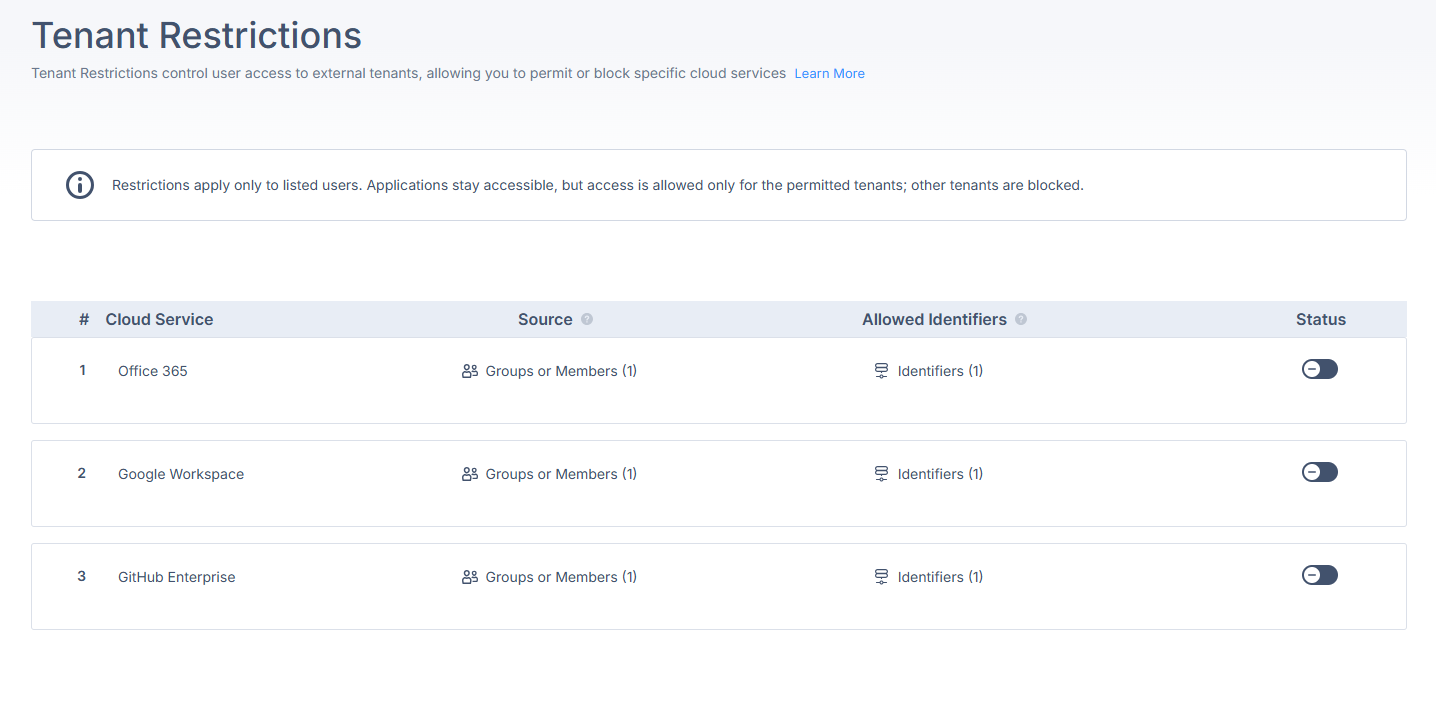
- For the cloud service to configure (for example, GitHub, Slack, or Claude), do these steps:
- In the Source field, add groups or users list to which you want to apply the rule. Default is Any.
- Click Any > Add Source > Groups or Members to scope the rule to specific users.
Manage Groups or Members window appears.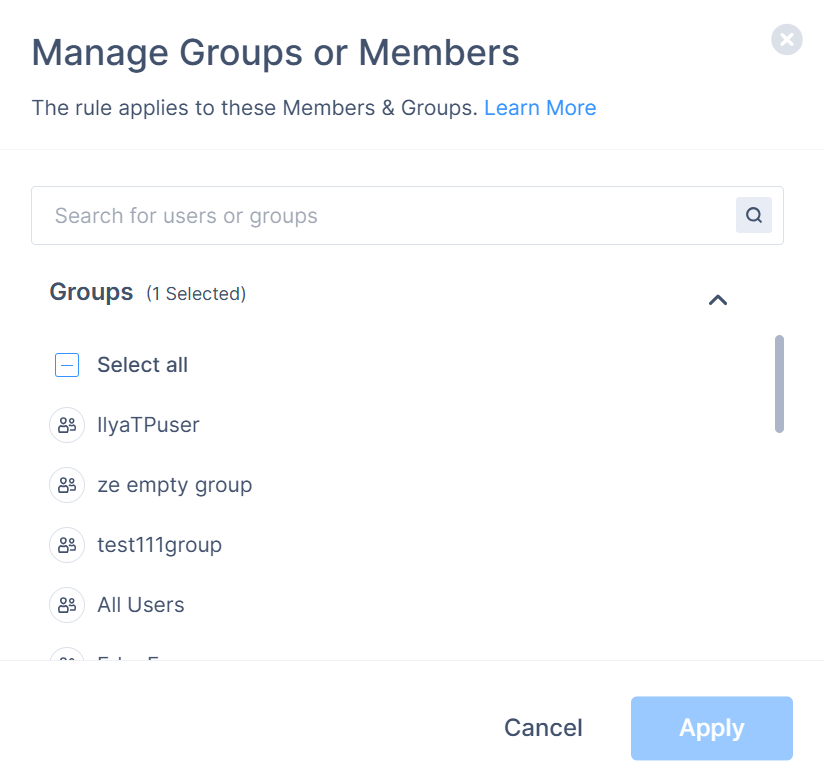
- Select the required groups or members and click Apply.
- In the Allowed Identifiers field, enter the permitted tenant identifiers for this vendor. See the vendor-specific field requirements in the table below.
- In the Allowed Identifiers window, enter the required values and click Apply.

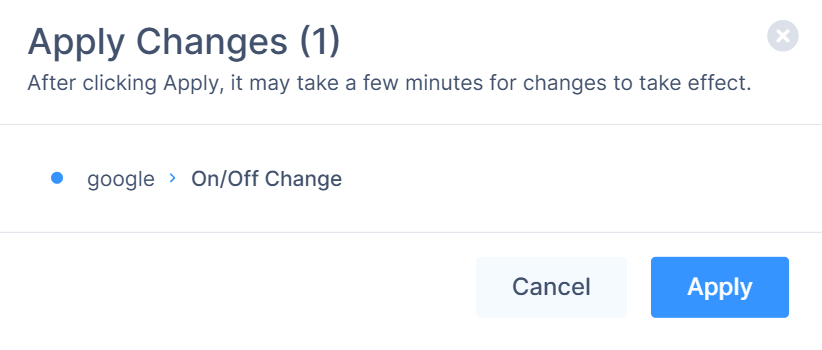
- To activate the rule, turn on the Status toggle.
Click Apply.
Vendor-Specific Field Requirements
Each vendor uses a specific field label and input format in the Allowed Values column:
| Vendor | Field Label in UI | What to Enter |
|---|---|---|
| Microsoft 365 | Manage Tenant IDs & Domains | Comma-separated list of allowed tenant domains or IDs. Optionally configure the Block personal Microsoft accounts toggle. |
| Google Workspace | Manage Domains | Comma-separated list of allowed domains (for example, company.com). Optionally configure the Block personal Google accounts toggle. |
| GitHub | Manage Enterprise IDs | Numeric GitHub Enterprise ID only. Example: 576354. Found in GitHub Enterprise settings. Enter one value at a time. Maximum 20 entries. |
| Claude (Anthropic) | Organization ID | Your Anthropic organization UUID, found in the Anthropic admin console. |
| ChatGPT (OpenAI) | Workspace ID | Your OpenAI workspace or organization ID. |
| Slack | Requester Workspace ID + Allowed Workspaces | Enter your organization's Slack workspace ID in the Requester field. Then add the workspace IDs users are permitted to access. |
Enabling or Disabling a Vendor
Each vendor can be independently enabled or disabled. To enable or disable a vendor from the list - use the toggle in the vendor row.
- Each application supports a single configuration. Rules are not prioritized or matched in order.
- All changes to the Tenant Restrictions configuration (for example, domain updates, enabling or disabling rules) are recorded in the administrator audit log.
- Restriction enforcement occurs on the end user side within the SaaS application.
End User Behavior
When Tenant Restrictions are enabled, users experience these behaviors based on their actions:
| Scenario | User Experience |
|---|---|
| User accesses an allowed tenant | Access proceeds normally. |
| User accesses a disallowed tenant | A block page is displayed by the SaaS application (for example, Microsoft 365 and Google Workspace), indicating that access is not permitted. |
| User accesses another SaaS application | No restriction is enforced, and access is allowed (for example, Salesforce and Atlassian). |
| User accesses a GitHub enterprise not in the allowed Enterprise IDs list | GitHub displays: “Your network administrator has blocked access to GitHub except for the [enterprise name].” Access is denied across all supported channels: git operations, GitHub CLI, and GraphQL API. |
Tenant Restriction Logs
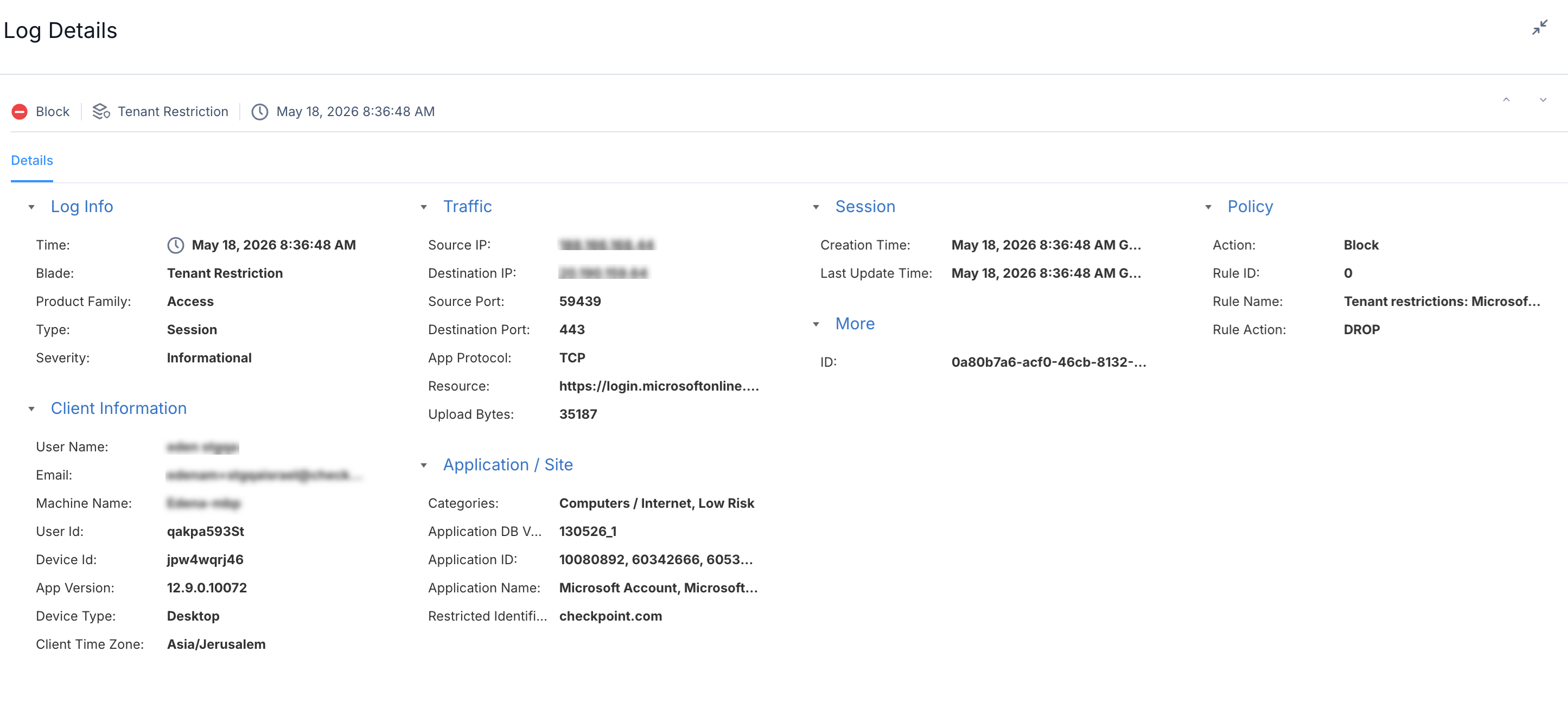
When a user attempts to sign in to a SaaS application using an account that does not belong to an allowed tenant, a blocking action is triggered by the relevant vendor and a a log entry is generated on SASE. These logs help you identify unauthorized access attempts and policy gaps.
Logs are generated automatically. No additional configuration is required.
Logs examples:
- Microsoft 365
- Google Services
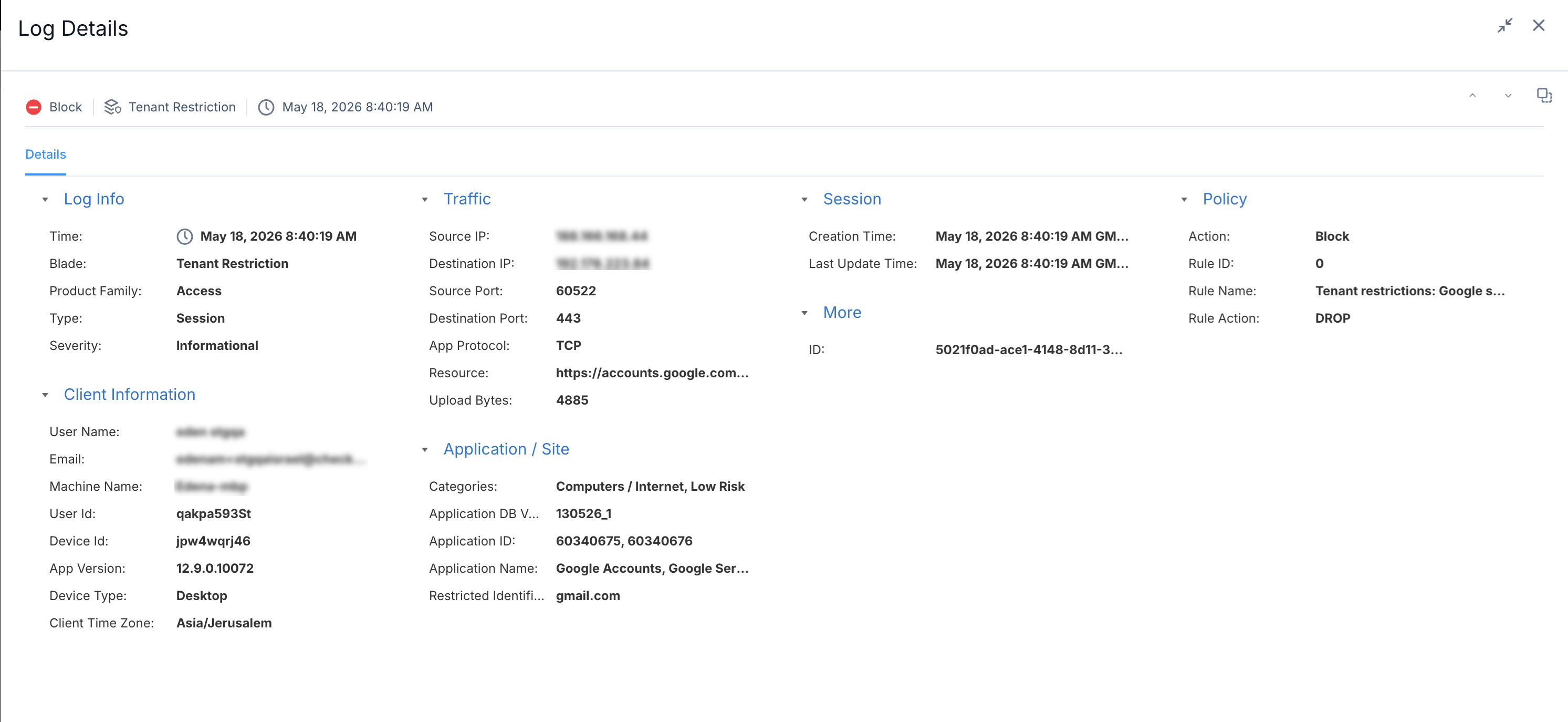 A single log entry is created for each blocked login attempt. Each entry includes:
- User - The identity that attempted to sign in
- Application - The SaaS application where the login was attempted
- Restricted Identifier - The tenant identifier that the user attempted to access
- Category - The URL category of the login endpoint
- Policy Rule - The tenant restriction rule that blocked the attempt
- Action - Blocked
Limitations
- Logs are generated only for failed login attempts.
- Successful logins to allowed tenants are not logged.