This topic describes how Managed Service Providers (MSSPs) onboard and manage customer Check Point SASE tenants using the Infinity Portal. In an MSSP environment, administrators manage user access centrally from the Infinity parent tenant and assign permissions to child Check Point SASE tenants through User Groups.
This section explains how to:
- Create a SASE-enabled child tenant
- Assign the SASE service and PAYG license
- Grant MSSP parent access
- Manage users and roles
For general Infinity Portal account management and user administration, see Infinity Portal MSSP Administration Guide.
Prerequisites
Before you begin, ensure the Infinity Portal parent account:
- Is configured as an MSSP account
- Is connected to a valid User Center account
- Has Pay-As-You-Go (PAYG) licensing enabled
Onboarding a Check Point SASE Child Tenant
Follow these steps to onboard a new customer tenant with Check Point SASE.
Create a Child Tenant
- Sign in to Infinity Portal.
- Create a new child tenant under the MSSP parent account.
The user who creates the child tenant becomes the Primary Admin for that tenant.
For information about how to create a child tenant, see Infinity Portal MSSP Administration Guide.
Add the SASE Service to the Child Tenant
- Access to Infinity Portal, go to Manage Accounts.
- Select the newly created child tenant.
- Click Add Contract.
- Add the SASE service:
- Service name: SASE
- Contract type: Pay-As-You-Go license.
- Package (SKU): Select the required Pay-As-You-Go (PAYG) SKU.
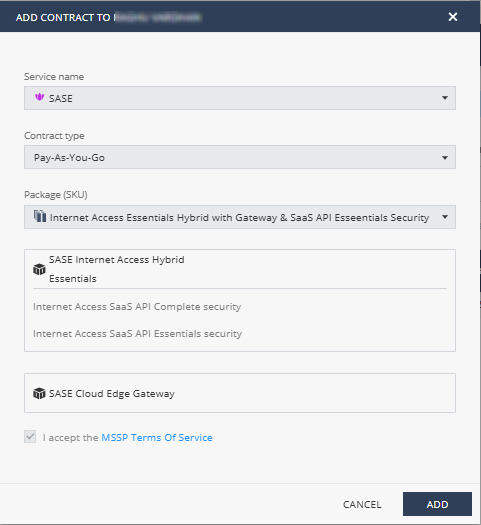
The user who adds the SASE service must:
- Have Administrator permissions in the MSSP parent tenant.
- Have User Group Admin access to the child tenant.
Supported SKUs
- Internet Access
- Private Access
- Gateway
User Management
User management depends on where the user is defined.
For more information about user roles and management, see Infinity Portal MSSP Administration Guide.
MSSP Parent Users
Parent users receive access to child tenants through User Groups.
Users assigned administrative roles through User Groups automatically inherit access to permitted child tenants.
Supported Roles
- Primary Global Admin
- Global Admin
- SASE Admin
- User Manager
- Network Manager
- Security Manager
- Each user can have only one SASE role.
- If a user belongs to multiple User Groups, ensure the groups do not assign conflicting SASE roles.
Not Supported
- Global Read-Only
- SASE Read-Only
- Multiple roles per user
- Custom roles
- Global User Admin role mapping to SASE roles
Grant Additional MSSP Parent Users Access to the Child Tenant
To grant additional MSSP parent users access to the child tenant:
- In the MSSP parent tenant, open User Groups.
- Edit or create a User Group.
- Grant access to the required child tenant.
- Assign the appropriate SASE role.
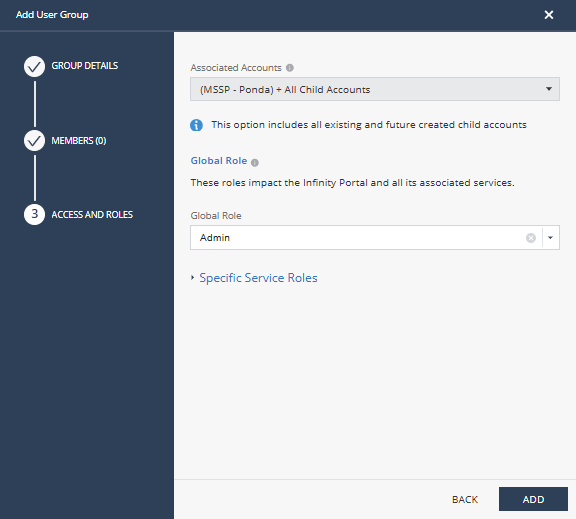
User Groups control how access is inherited from the parent tenant to child SASE tenants.
Child Tenant SASE Members
You can add members directly to the child tenant:
- Manually
- Through an integrated Identity Provider (IdP)
When a member signs in to Check Point SASE for the first time, the system adds the user as a SASE member and includes the user in license consumption.
Usage and Billing
Billing is based on usage reported by each child tenant.
- Usage data is reported daily.
- Reports reflect the previous day's usage.