Threat Prevention exceptions allow administrators to handle false positives safely without disabling entire security blades. By defining exceptions for specific URLs or files, organizations can maintain user productivity while preserving a strong security posture.
You can manage all exceptions from the Exceptions tab. This page allows you to create, edit, delete, and search for exceptions efficiently.
To access the Exceptions tab, access the Check Point SASE Administrator Portal, click Threat Prevention, and click the Exceptions tab.
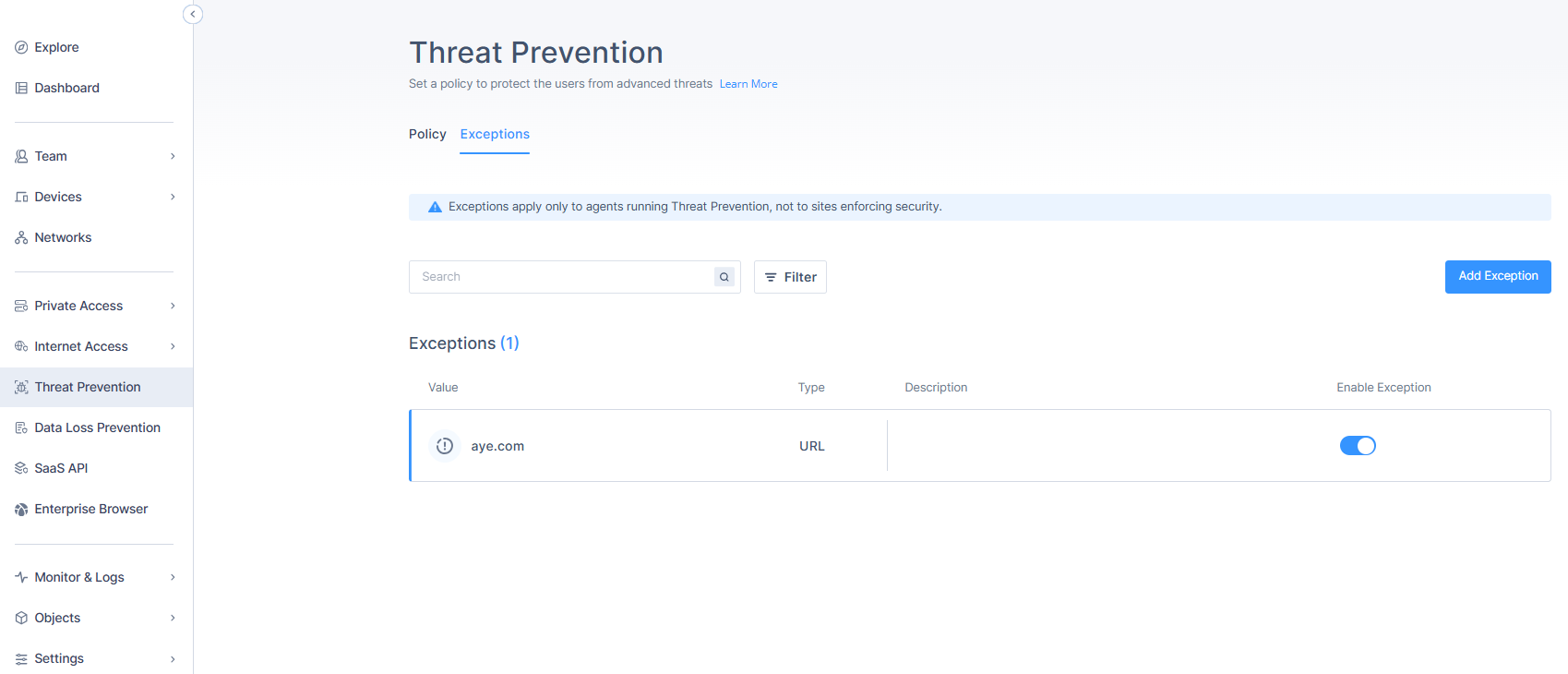
Example Use Case
- Whitelisting a false-positive file based on its SHA256 hash.
- Creating exceptions from user-submitted false-positive reports.
Key Concept
Threat Prevention exceptions provide flexibility in managing cases where legitimate resources are blocked by security policies.
Key Principles
- URL exceptions take precedence over file exceptions.
- File identification uses SHA256 hash values.
- URL exceptions apply to both HTTP and HTTPS protocols.
- Domain-level exceptions include all subdomains and paths (example,
*.microsoft.com*or*.microsoft.com/*). - SHA-256–based exceptions are not supported by the Anti-Bot blade.
URL Exceptions
URL exceptions allow administrators to whitelist specific domains or URLs that were previously identified as malicious or risky. URL exceptions support wildcard entries and apply to both HTTP and HTTPS traffic.
Creating URL Exceptions
To create a URL Exception:
- Access the Check Point SASE Administrator Portal, click Threat Prevention, and then click the Exceptions tab.
- Click Add Exception.
The Add Exception window appears.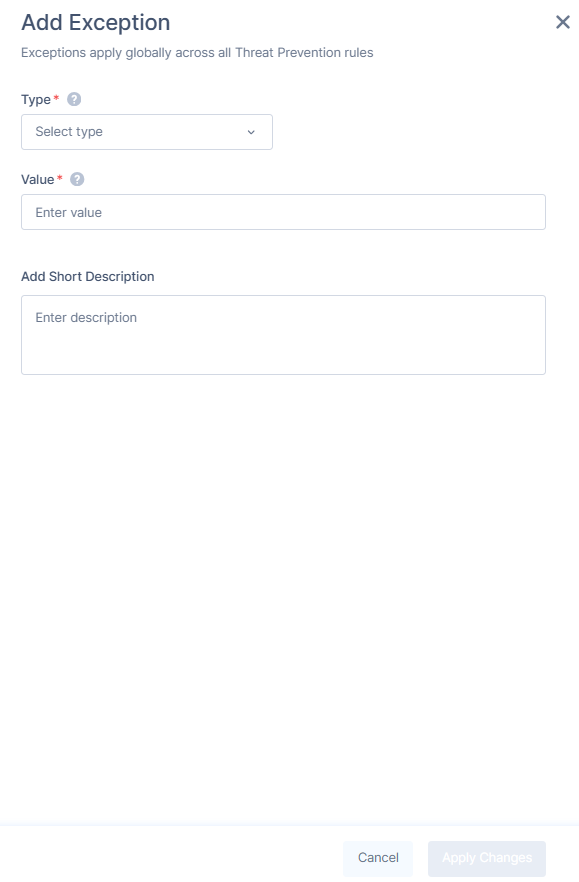
- From the Type list, select URL.
- In the Value field, enter the full domain or URL. To allow all subdomains, use a wildcard (example,
*.microsoft.com).Note - Use a valid URL without http/https, ?, or #. Include www if part of the domain. Wildcards (*) are allowed only at the start of the domain (example, *.example.com). - (Optional) In the Add Short Description field, enter a description with expiration date.
- Click Apply Changes.
File Exceptions
File exceptions are used when legitimate files are flagged as malicious by Threat Prevention. The system supports the SHA256 hash identifier.
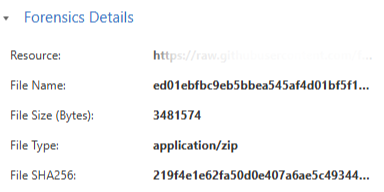
Creating File Exceptions
To create a File Exception:
- Access the Check Point SASE Administrator Portal, click Threat Prevention, and click the Exceptions tab.
- Click Add Exception.
The Add Exception window appears. - From the Type list, select File Hash.
- In the Value field, enter the file's SHA256 hash exactly as it appears (64 characters, in hexadecimal format).
- (Optional) In the Add Short Description field, enter a description.
- Click Apply Changes.
Managing Exceptions
The Exceptions page provides a complete list of all configured exceptions.
- To delete an exception, hover over the exception row that you want to delete, scroll to the end of the table, and click
 .
. - To duplicate an exception, hover over the exception row that you want to duplicate, scroll to the end of the table, and click
 .
. - To edit an exception, do either of these:
- Hover over the exception row that you want to edit, scroll to the end of the table, and click
 .
. - Click the exception row that you want to edit.
The Manage Exception window appears.
- Hover over the exception row that you want to edit, scroll to the end of the table, and click
- Make the required changes.
- Click Apply Changes.
Exception Properties Reference
| Property Name | Type | Description |
|---|---|---|
| Type | List | Values:
|
| Value | String (500) | The URL or Hash value |
| Description | String (1000) | Optional description |
| Status | Boolean | Enabled or Disabled. The default value is Enabled. |
- Use wildcards carefully, and avoid broad exceptions that may reduce protection.
- Regularly review and clean expired exceptions.
- Always validate hash values before adding file exceptions.