
Enhancing Your Support Experience - Migration to User Center Portal
We are excited to announce an important upgrade to our support services! After careful implementation, we are transitioning to Check Point Support Center as our new support platform. New Service Requests are already available at https://support.checkpoint.com.
As a Check Point company, we are fully committed to providing the best support and seamless experience for our customers.
The goal of this change is to enhance our support offerings and align with other Check Point products for a seamless experience accessible within a single portal.
What Does This Mean for You?
Unified Support Portal - Access all Check Point products from one centralized location.
Enhanced Support - By using Check Point ticketing Service Cloud, our engineers will have enhanced tools to resolve your queries and offer proactive solutions.
Admin Visibility - User Center Administrators have broader visibility into support requests across their organization, improving oversight and continuity.
User Center and Platform admins are not directly linked. To ensure admin privileges, contact our support channels.
What Is Required from You?
To ensure uninterrupted support and a smooth transition, please take a moment to review the steps below:
Register for a User Center Account: All users are required to register for a new User Center account to continue receiving support. Your user will be automatically linked to the appropriate Check Point SASE workspace.
⚠️ IMPORTANT – ACTION REQUIRED: After March 31st, support tickets will no longer be submitted via email or portal. Please ensure you are registered in the User Center before this date to avoid disruption.
Submit Support Requests via User Center: Once registered, log in to the User Center Portal to submit and track your support tickets.
Watch Our How-To tutorials:
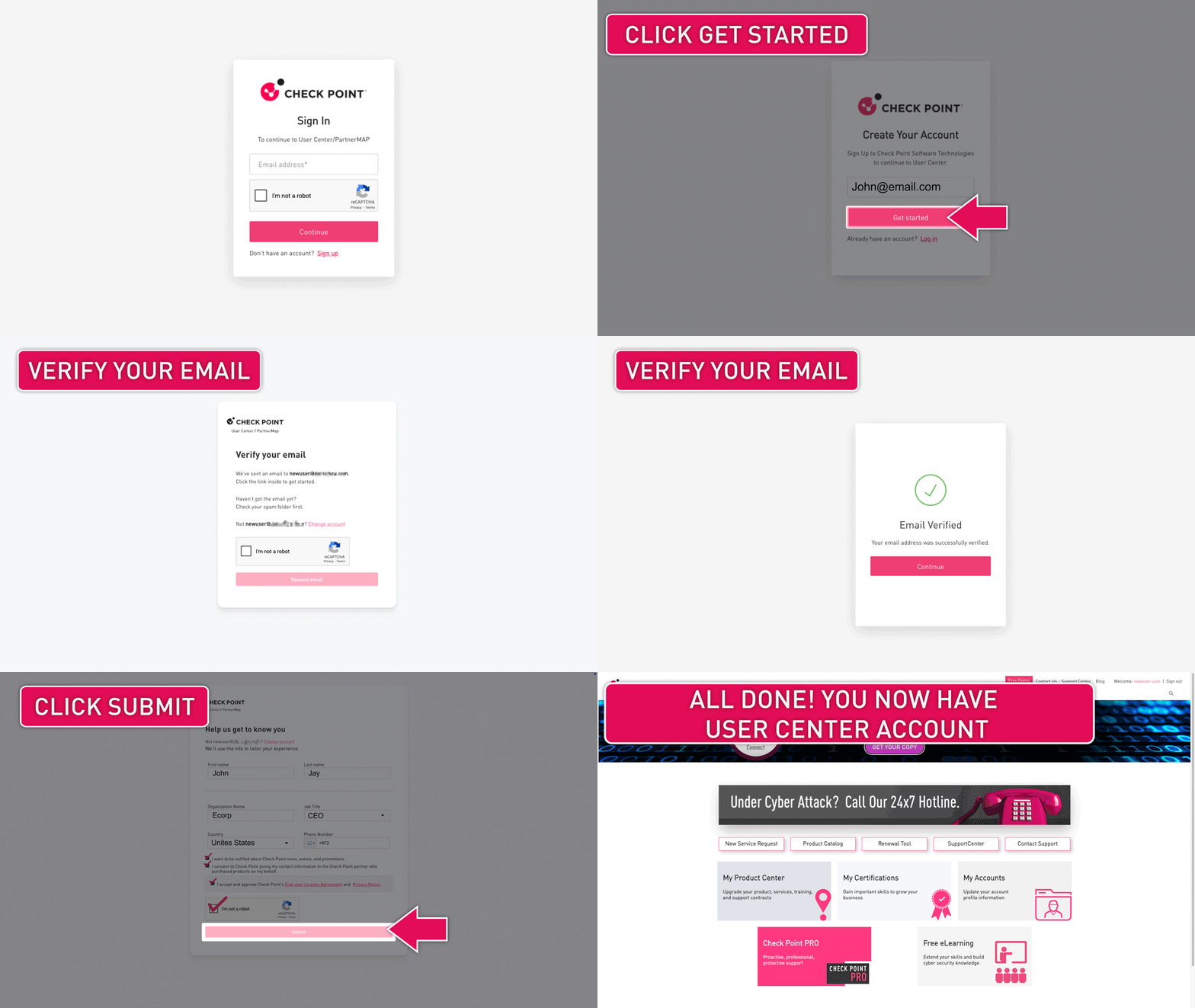
How to Register for a User Center Account:
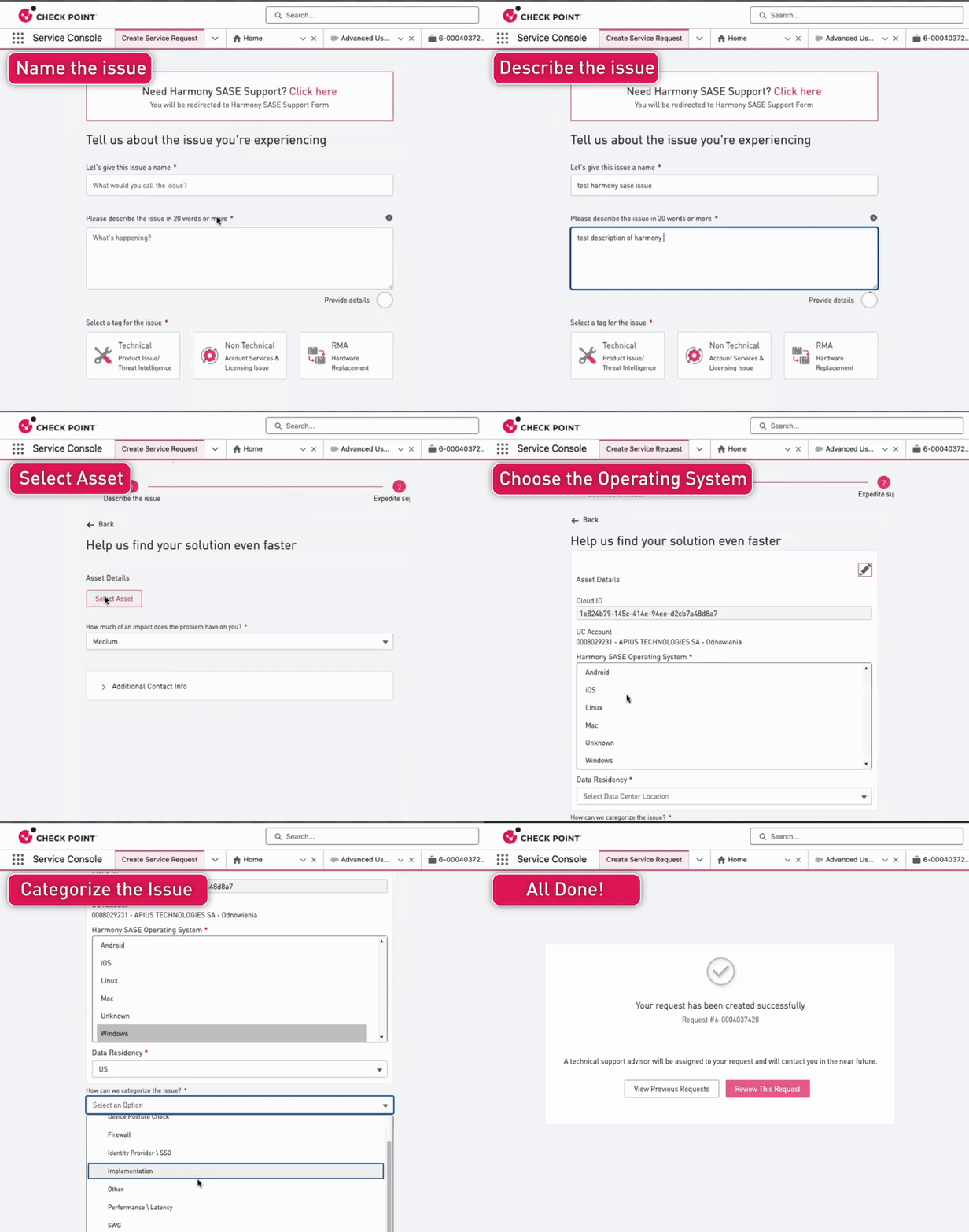
How to create a service request as Admin:
Cloud ID will be your Check Point SASE (Check Point SASE) workspace name. Do NOT select Cloud account type: INFINITY
For Partners and MSPs: Partners and MSPs can open support cases using a dedicated user role, which allows submitting cases in free text on behalf of any of their customers.
How to create a service request as a User:.gif)
Uploading Logs and attachments:
Download Aspera Connect: https://support.checkpoint.com/results/sk/sk178326
What Will Change?
Starting from April 1st, all new support requests must be submitted via User Center. Tickets can no longer be created via email after this date.
Existing Tickets: Ongoing support cases in our old platform will remain active until resolved.
Agent: Log collections will now be collected and saved locally instead of automatically uploaded to the ticket. Logs will no longer be automatically sent to Support to open a ticket. This change will be implemented to all customers across February-March 2026.
How to Access Support?
User Center Portal Submit and track your tickets easily.
Live Chats in Check Point SASE Portal: Instant real-time support when needed.
We’re Here to Help!
We want to ensure a smooth transition for you. If you experience an issue where User Center is not properly associated with your account after registration, please open a non-technical case via User Center or contact us at sase-support@checkpoint.com (available until this channel is fully decommissioned).
Guideline for new User Center customers: If you are new to User Center or unsure about roles or permissions, please contact your Account Manager (AM) or Customer Success Manager (CS) for guidance.