Introduction
This topic explains how to establish a redundant Site-to-Site VPN tunnel between your Check Point SASE Network and Check Point Maestro VSX Firewall.
Pre-requisites
Check Point SASE Administrator Portal account.
Device with Check Point SASE Agent installed.
Administrator account with Firewall, Router, and the Cloud Management Portal.
A Maestro VSX cluster with one or two public IPs.
Part 1 - Configuration in SmartConsole
Step 1: Creating Interoperable Device Object in the Check Point SmartConsole
Log in to the Check Point SmartConsole.
Click Security Policies.
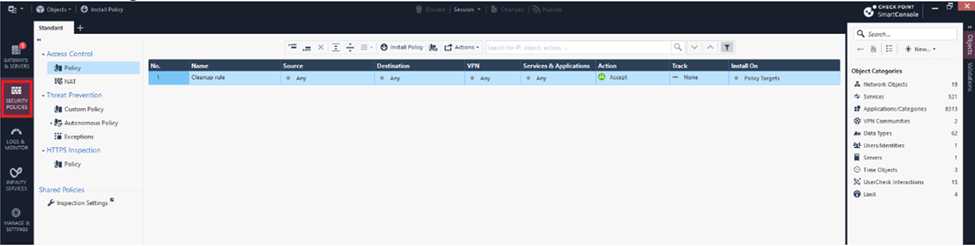
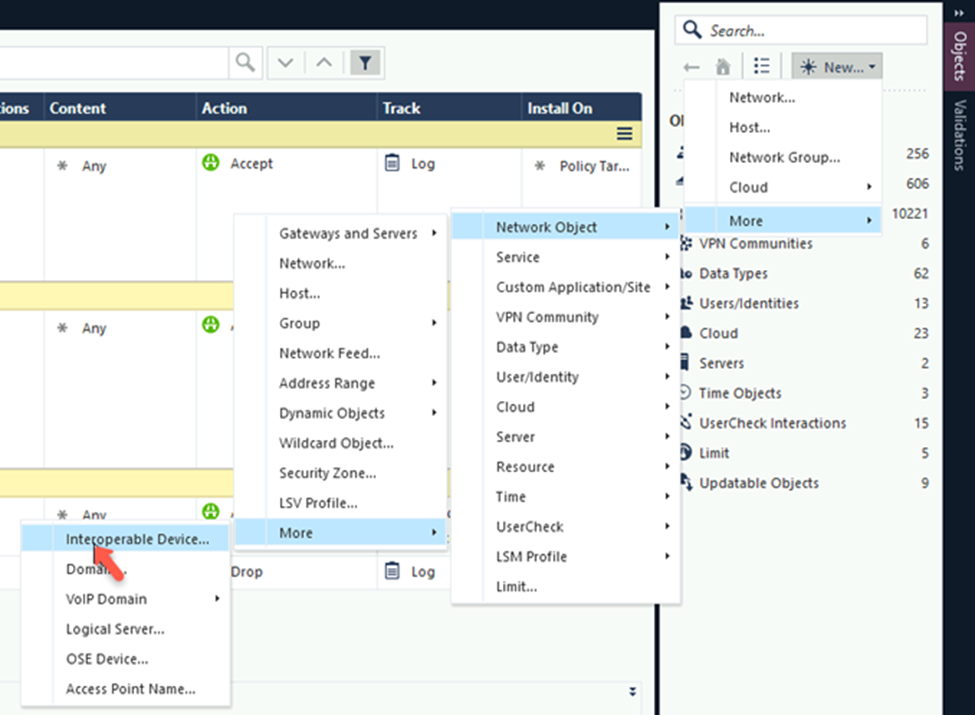
In the Objects pane, click New and select More > Network Object > More > Interoperable Device.
 The Interoperable Device popup appears.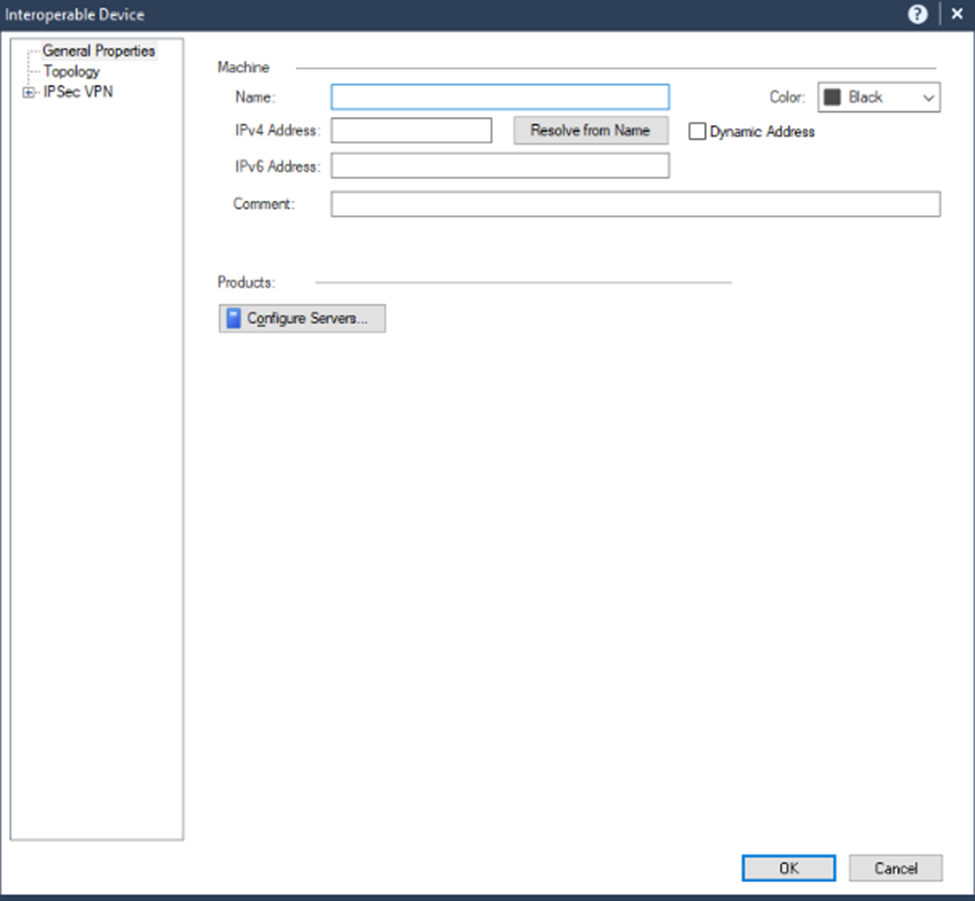
In the Name field, enter a name for the Check Point SASE Gateway, for example, Harmony_SASE_Gateway.
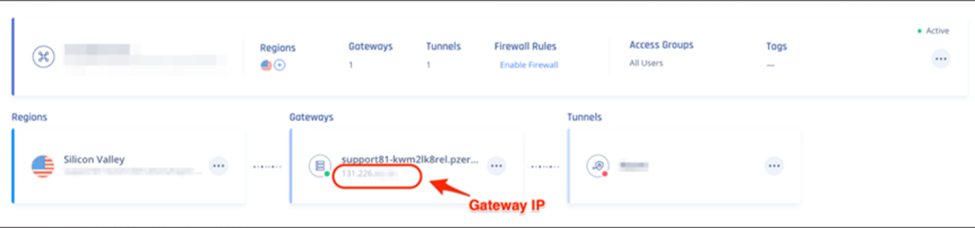
In the IPv4 Address field, enter the Check Point SASE Gateway public IP address.
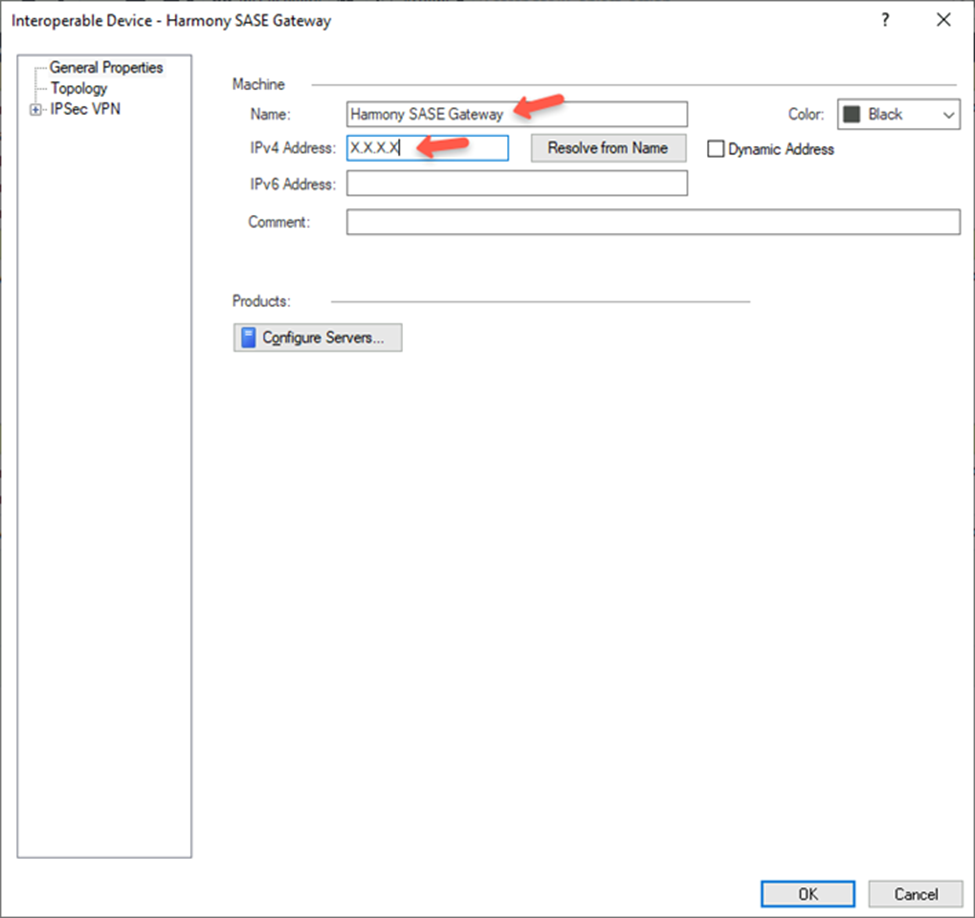
To find the Check Point SASE Gateway public IP Address:
Access the Check Point SASE Administrator Portal and click Networks.
Select the network.
Go to the Gateways section to find the Public IP address for setting up the single IPsec tunnel.
Click OK.
Step 2: Adding Check Point SASE Gateway IP Address and Remote Subnet To The Interoperable Device Object
Log in to the Check Point SASE Administrator Portal.
Click Networks.
Verify the assigned network:
Select a network, scroll to the end of the row and click
 .
.Select Edit Network.

In the Edit Network section, check the Subnet field to verify the assigned network. The default value is 10.255.0.0/16.
Open the Interoperable Device object that you created.
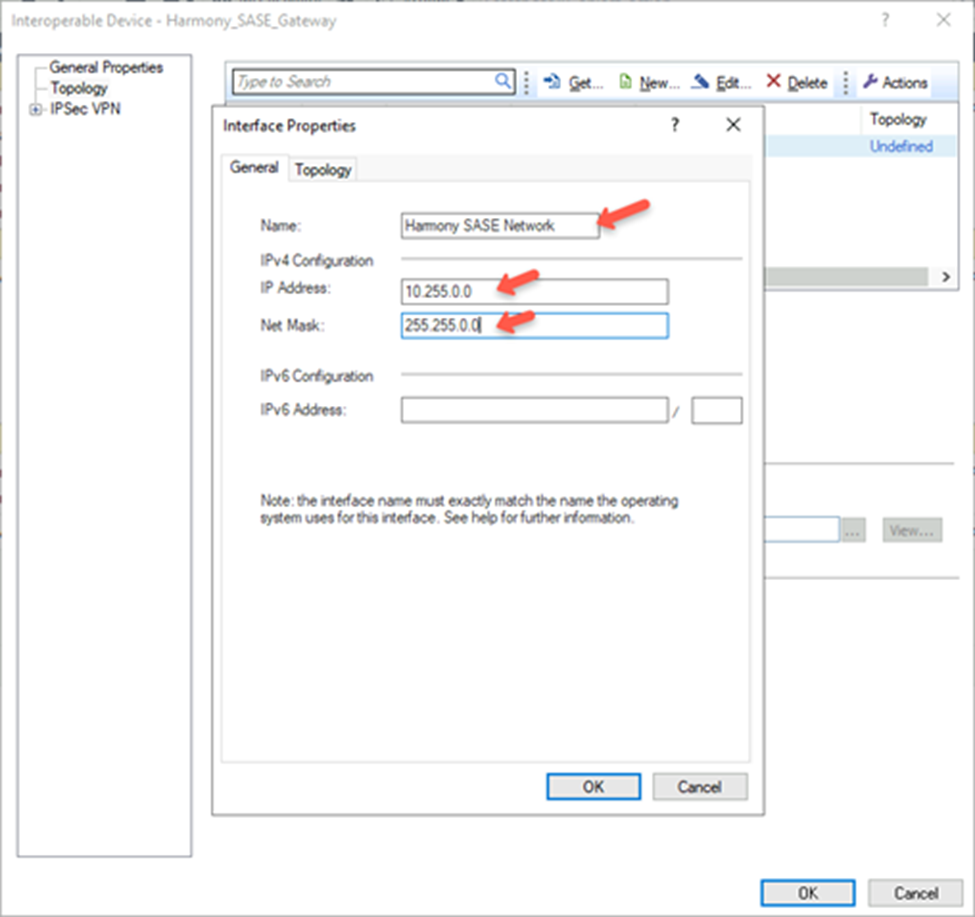
Click Topology > New.

In the General tab, enter these:
Name – Name of the topology, for example, Check Point SASE Network.
IP Address – 10.255.0.0
Net Mask– 255.255.0.0
In the Topology tab, select Internal (leads to the local network) and then select Network defined by the interface IP and Net Mask.
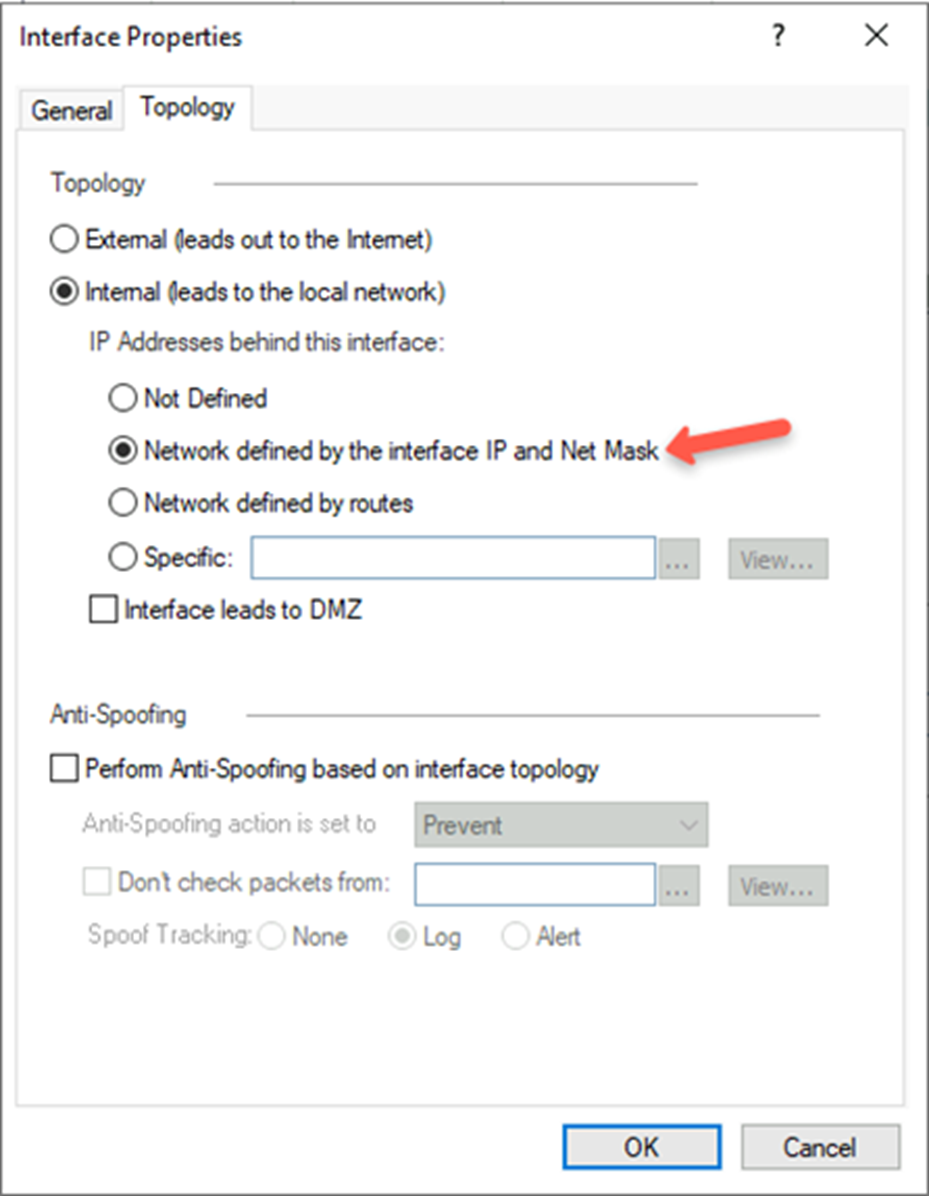
Note:
If the gateway is configured with an interface topology that includes a network range or a group overlapping with the encryption domain of the remote VPN peer, incoming decrypted traffic may be seen as coming from the wrong interface. This could trigger anti-spoofing measures, causing traffic to be dropped. To create an anti-spoofing exception, see sk151774.
Click OK.
Click Topology > New.

In the General tab, enter these:
Name – Name for the topology, for example, Harmony_SASE_Gateway
IP Address – Public IP address of the Check Point SASE gateway
Net Mask – 255.255.255.255
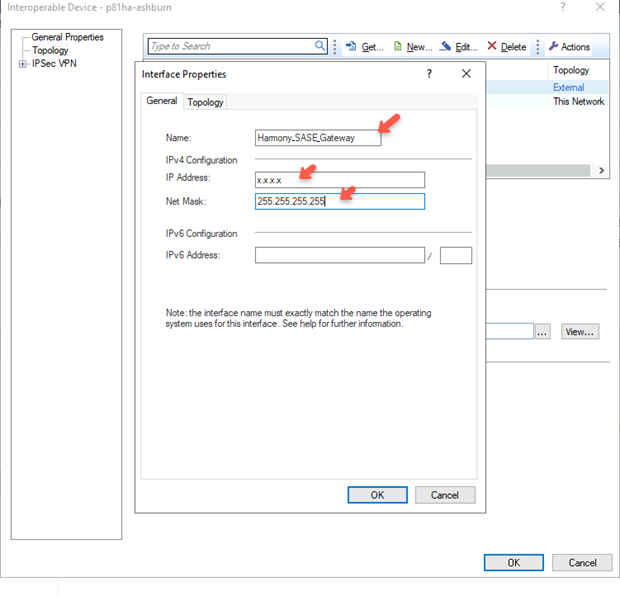
Click the Topology tab, Select External (leads out to the internet).
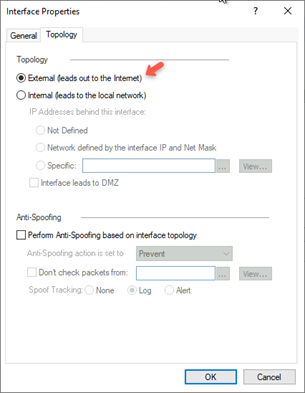
Click OK.
In the VPN Domain section, select User defined and click
.Click New and go to Group > Simple Group.
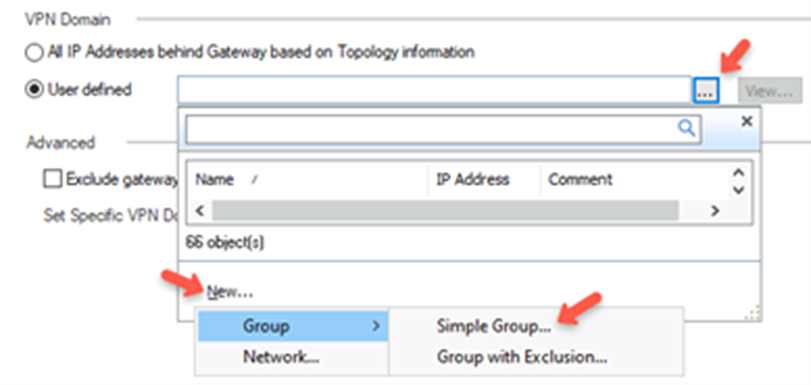 The New Network Group popup appears.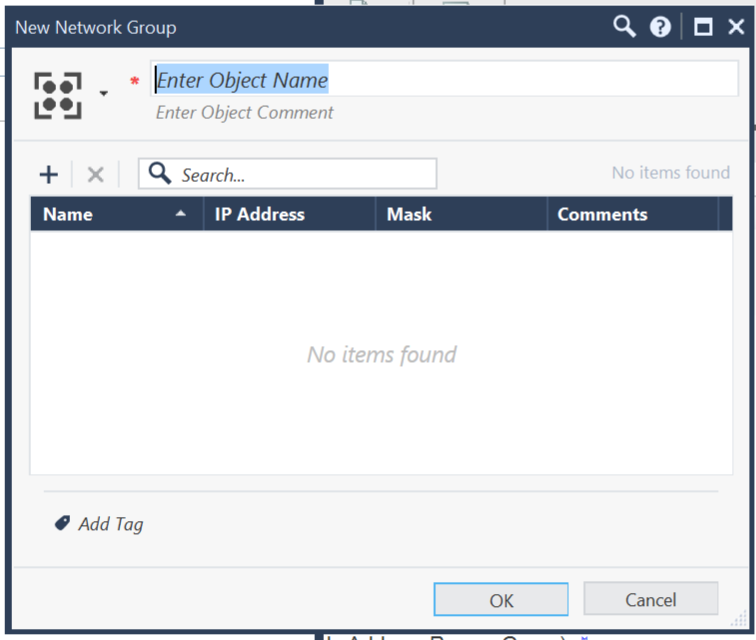
In the Enter Object Comment field, enter a name, for example, HSASE_VTI, and click OK.
For the other Check Point SASE Gateway and Check Point Gateway, follow the same procedure in Creating Interoperable Device Objects in the Check Point SmartConsole and Adding Check Point SASE Gateway IP Address and Remote Subnet To The Interoperable Device Object sections.
Publish and install the policy.
Step 3: Creating VPN Star community
Log in to the Check Point SmartConsole.
Click Security Policies.
Go to Access Tools > VPN Communities.
Select an object, click New and go to More > VPN Community > Star Community.
The New Star Community popup appears.
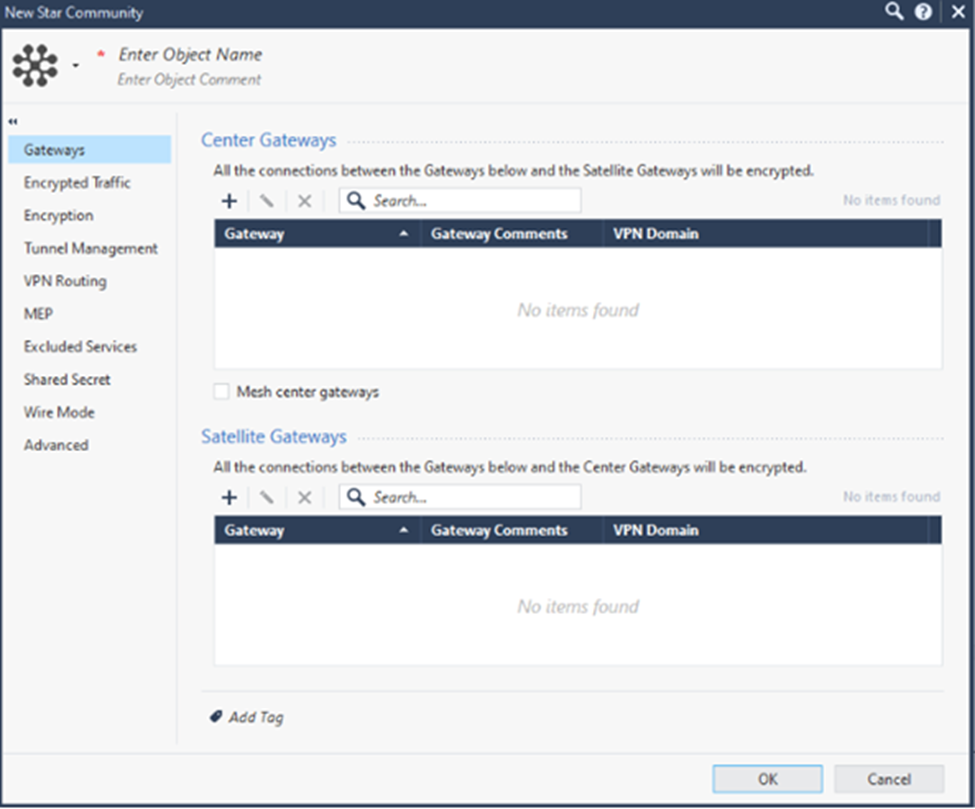
In the Enter Object Name field, enter an object name for the VPN Star Community, for example, Harmony_SASE_VPN.
In the Centre Gateways section, click
 and add the Maestro Security Group.
The Security Group is added to the table.
Double-click the Maestro Security Group in the table.
In the VPN Domain section, select the Override checkbox and from the list, select the allow all VPN group.
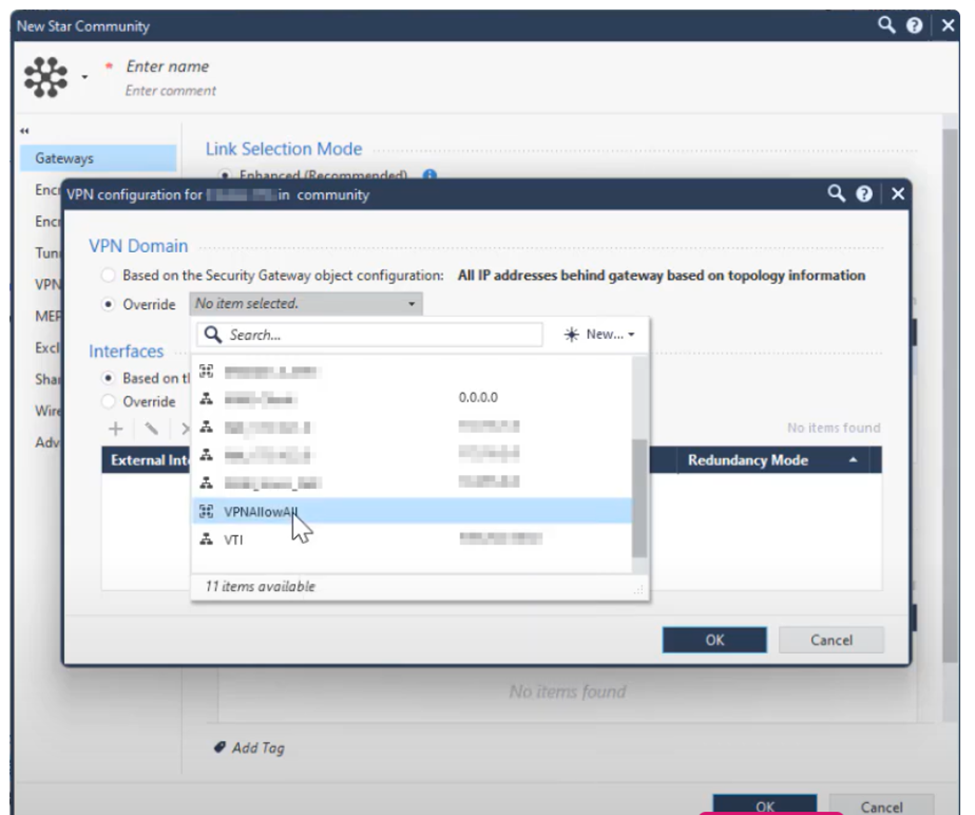
In the Interfaces section, select the Override checkbox and click
.The Interface Settings popup appears.
Specify these:
External Interface
Static NAT IP Address - The Check Point SASE Gateway public IP address.
Click OK.
Click OK.
In the Satellite Gateways section, click
and add the Interoperable Device Object created for the Check Point Gateway. See Step 1.Go to Shared Secret and click
 to edit the shared key.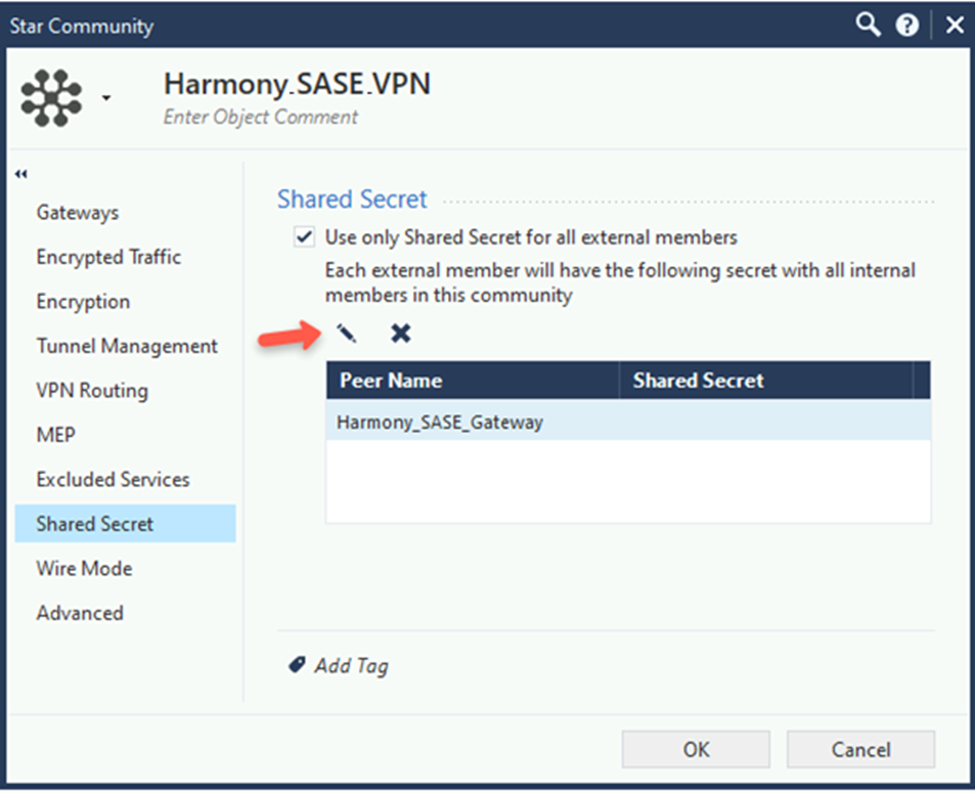
In the Enter secret field, enter an appropriate key.
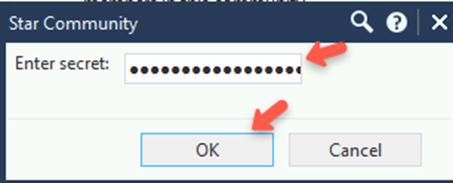
Notes:
Check Point recommends that the shared secret key is at least 20 characters in length.
Copy the key as it is required while configuring the IPsec Tunnel in the Check Point SASE Administrator Portal.
Click OK.
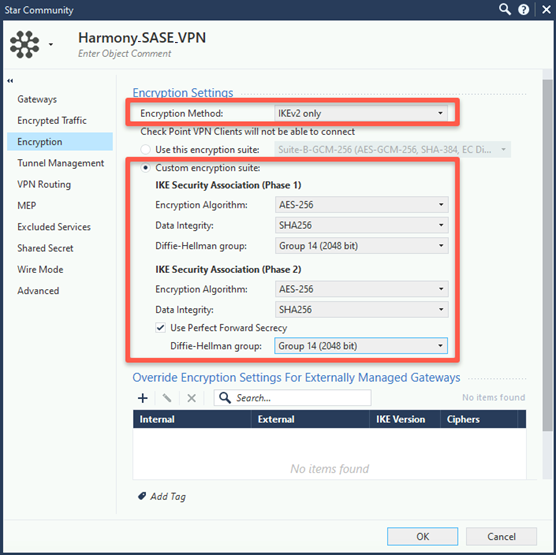
From the left navigation pane, click Encryption and do these:
In the Encryption Settings section, from the Encryption Method list, select IKEv2 only.
In the Encryption Suite section, select Custom encryption suite.
In the IKE Security Association (Phase 1) section:
From the Encryption Algorithm list, select AES-256.
From the Data Integrity list, select SHA256.
From the Diffie Hellman group list, select Group 14 (2048 bit).
In the IKE Security Association (Phase 2) section:
From the Encryption Algorithm list, select AES-256.
From the Data Integrity list, select SHA256.
Select Use Perfect Forward Secrecy.
From the Diffie Hellman group list, select Group 14 (2048 bit).
Go to Tunnel Management.
In the Permanent Tunnels section, select the Set Permanent Tunnels checkbox and then select On all tunnels in the community.
.png)
In the VPN Tunnel Sharing section, select One VPN tunnel per Gateway pair.
Note:
Make sure that you enter the remote subnets specified here in the Check Point SASE Administrator Portal. A mismatch can disconnect the tunnel.
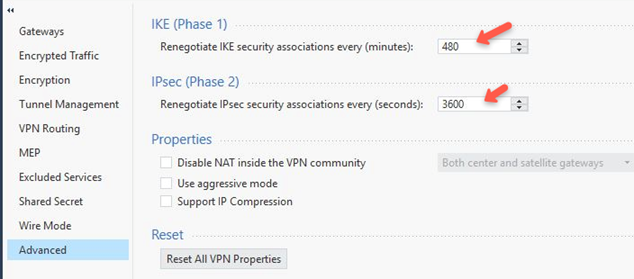
Go to Advanced.
In the IKE (Phase 1) section, set the Renegotiate IKE security associations every (minutes) field to 480.
In the IPsec (Phase 2) section, set the Renegotiate IPsec security associations every (seconds) field to 3600.
Click OK.
In the Properties section, select the Disable NAT inside the VPN community checkbox and from the list, select Both center and satellite gateways.
Publish and install the policy.
Step 4: Additional settings in Check Point SmartConsole
To set up a Check Point firewall policy, add a rule for VPN traffic for the specific VPN Domain in the Check Point SmartConsole.
In the example below, we have created a policy to allow traffic from the Check Point SASE Network 10.255.0.0/16 to specific destinations and services.
Note:
The network configuration differs if you have not changed the default settings during Check Point SASE network creation. For testing purposes, you should initially allow any/any or allow ping before making the firewall policy more restrictive.

Publish and install the policy.
Step 5: Configuring VPN Tunnel Interface and BGP Configuration
Log in to Gaia Clish of the Maestro Security Group.
Switch to expert mode.
Write a script for creating two VPN Tunnel Interfaces with these content:
transaction begin

add interface vd <Name of Maestro Security Group> vpn_tunnel numbered peer <Name of Interoperable device of first SASE GW> local <Tunnel Local IP> remote <Tunnel Remote IP> tunnel_id <Tunnel ID>

add interface vd <Name of Maestro Security Group> vpn_tunnel numbered peer < Name of Interoperable device of second SASE GW > local <Tunnel Local IP> remote <Tunnel Remote IP> tunnel_id <Tunnel ID>

transaction end
Local Address - Internal address for the Maestro Security Group (within 169.254.x.x/30 ranges).
Remote Address - Internal address for the Check Point SASE Gateway (within 169.254.x.x/30 ranges, corresponding to the above).
Example for script content:
transaction begin

add interface vd vs-ext vpn_tunnel numbered peer SASE_Frankfurt_1 local 169.254.254.1 remote 169.254.254.2 tunnel_id 1

add interface vd vs-ext vpn_tunnel numbered peer SASE_London_1 local 169.254.254.5 remote 169.254.254.6 tunnel_id 2

transaction end
Execute the script through vsx_provisioning_tool:
vsx_provisioning_tool -s localhost -u <user name> -f <full path to above script>Verify successful execution of the script.
Exit expert mode and connect to the relevant Maestro Security Group:
Create a peer group by executing these commands:
set bgp external remote-as <Peer AS Number> on

set bgp external remote-as <Peer AS Number> peer <remote peer IP> on multihop on graceful-restart on

set bgp external remote-as <Peer AS Number> peer <remote peer IP> on multihop on graceful-restart on
Peer AS Number - The AS Number of the Check Point SASE network. If not set already, enter 64512.
Remote peer IP – Enter remote IP addresses of the two tunnels created in step 3.
Create an inbound route filter by executing these command:
set inbound-route-filter bgp-policy based-on-as as <AS Number> onAS Number - The AS Number of the Check Point SASE network.
Create a routes distribution rule by executing these command:
set route-redistribution to bgp-as <AS Number> from static-route all-ipv4-routes onAS Number - The AS Number of the Check Point SASE network.
Save the configuration:
save config
Log in to the Check Point SmartConsole.
Open the Maestro Security Group Properties.
Go to Network Management.
From the Get Interfaces list, select Get interfaces Without Topology.
Verify that the two VPN Tunnel Interfaces are added.
Publish and install the policy.
Part 2 - Configuration in Check Point SASE Administrator Portal
Step 1 : Configuring Tunnel and Routes Table
Access the Check Point SASE Administrator Portal and click Networks.
.png)
Select the network.
Click
 .
.Select Add Tunnel for the gateway from which you want to add the IPSec Site-2-Site VPN tunnel.
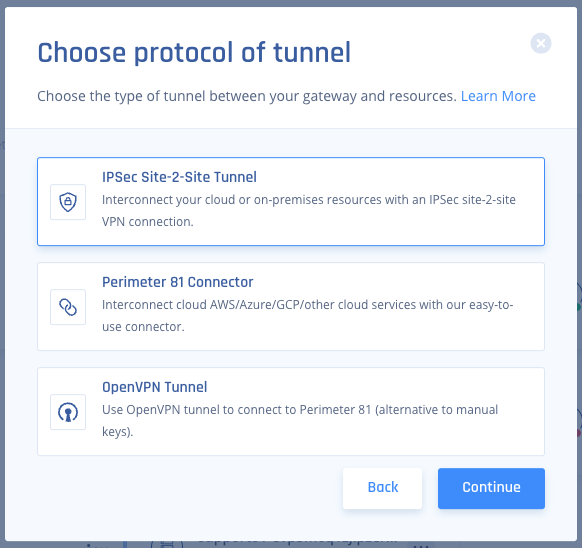
Click IPSec Site-2-Site Tunnel and click Continue.
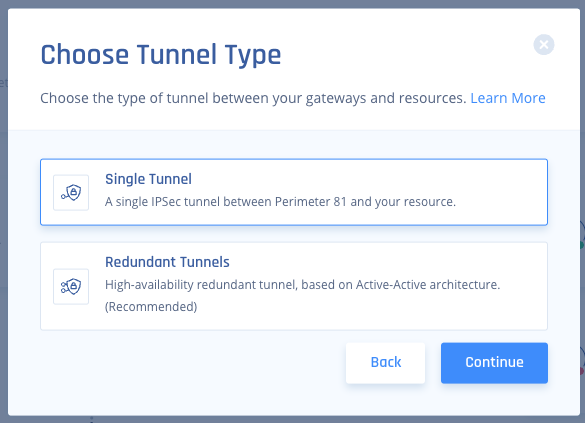
Click Redundant Tunnels and click Continue.
In the Tunnel name field, enter a logical name.
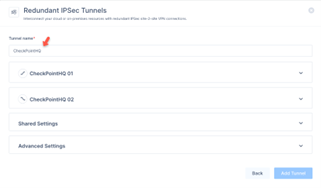
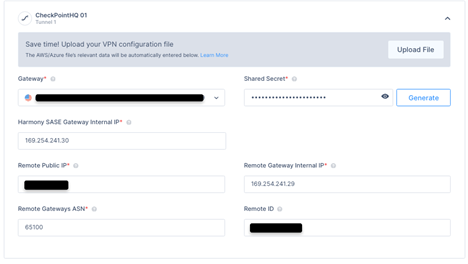
Expand Tunnel 1 and specify these:
Shared Secret – The value previously set on the first star policy.
Check Point SASE Gateway Internal IP - The remote address of the first Check Point Gateway used under the VTI settings.
Remote Public IP - The public IP of the Maestro Security Group.
Remote Gateway Internal IP -The first local address of the Maestro Security Group under the VTI settings.
Remote Gateways ASN - The ASN of the Maestro Security Group.
Remote ID - The router ID of the Maestro Security Group used under the BGP settings above.
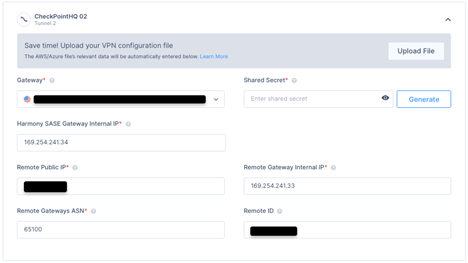
Expand Tunnel 2 and specify these:
Gateway - Select the second Check Point SASE Gateway for the tunnel.
Shared Secret - The value previously set on the second star policy.
Check Point SASE Gateway Internal IP - The remote address of the second SASE Gateway used under the VTI settings.
Remote Public IP - The public IP of the Maestro Security Group.
Remote Gateway Internal IP -The second local address of the Maestro Security Group used under the VTI settings.
Remote Gateways ASN - The ASN of the Maestro Security Group.
Remote ID - The router ID of the Maestro Security Group used under the BGP settings above.
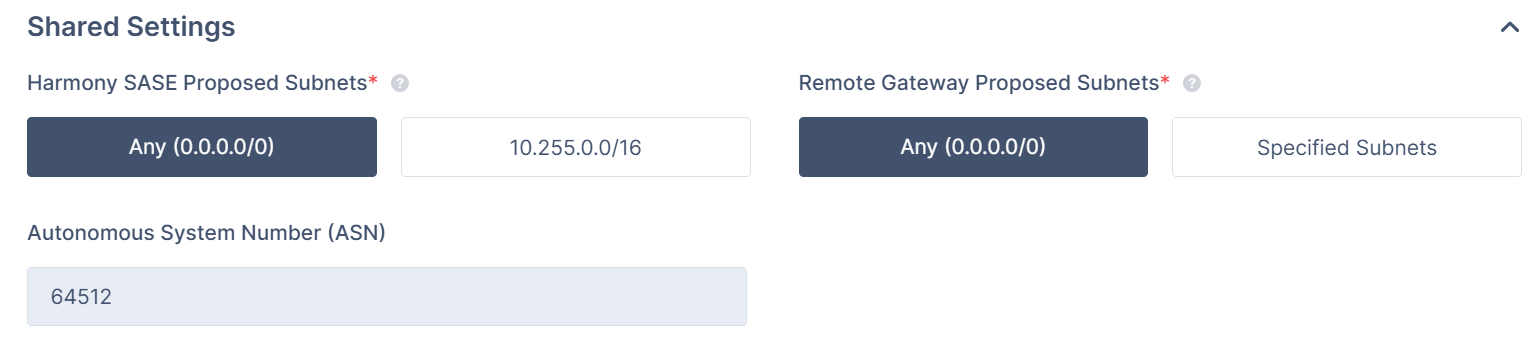
Expand Shared Settings and specify these:
Check Point SASE Gateway Proposal Subnets - Leave Any (0.0.0.0/0) selected.
Remote Gateway Proposal Subnets - Leave Any (0.0.0.0/0) selected.
Autonomous System Number (ASN) - Default value is 64512, if not set, enter the AS Number for the Check Point SASE network.
In the Advanced Settings section, specify these:
.PNG)
IKE Version: V2
IKE Lifetime: 8h
Tunnel Lifetime: 1h
Dead Peer Detection Delay: 10s
Dead Peer Detection Timeout: 30s
Phase 1:
Encryption(Phase 1): aes256
Integrity (Phase 1): sha256
Key Exchange Method: modp2048
Phase 2:
Encryption(Phase 2): aes256
Integrity (Phase 2): sha256
Key Exchange Method: modp2048
Click Add Tunnel.
Select Routes Table:
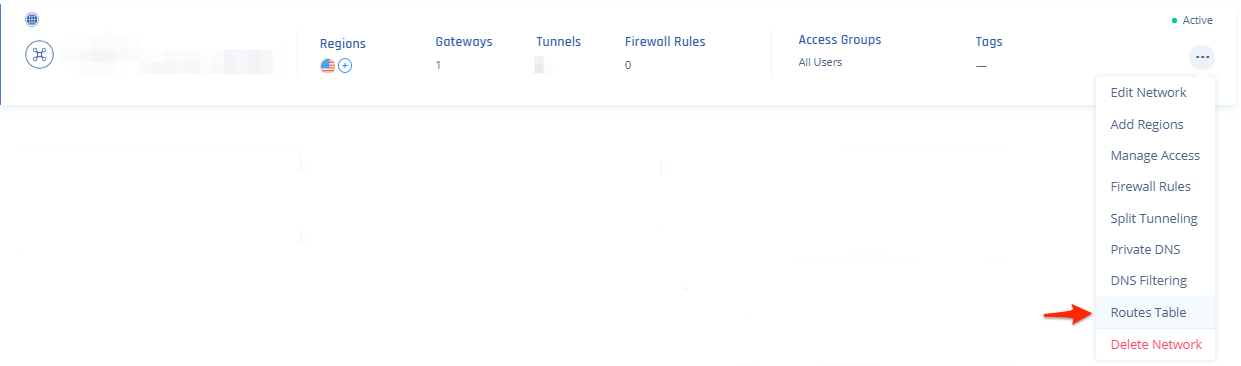
Click Add Route.
The Add Route popup appears.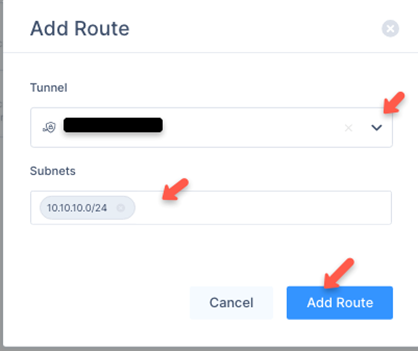
Enter all the subnets on the remote side of the tunnel and then click Add Route.
Note:
Make sure that in the Tunnel list, you have selected the previously entered Tunnel name.
Click Apply Configuration.

Step 2: Verifying the Setup
Once you complete the above steps, your tunnel should be active.
Verify the setup in the Check Point SASE Administrator Portal:
Click Networks.
Locate the tunnel you created, and check the tunnel status.
It should indicate that the tunnel is Up, signifying a successful connection.
Verify the setup in the Check Point SASE Agent:
Connect to your network using the Check Point SASE Agent.
Access one of the resources in your environment.
Troubleshooting
If you encounter issues during or after the setup, review your settings to ensure everything matches the instructions. Check the IP addresses and other details you entered during setup. If issues persist, please consult our dedicated support.
Support Contacts
If you have any difficulties or questions, contact Check Point SASE's support team. We offer 24/7 chat support on our website at sase.checkpoint.com, or you can email us at sase-support@checkpoint.com.